
Build it once, reuse it everywhere
The Question Library is a separate window that lives outside your working documents. Add cleaned, high-quality questions to it, and they’re available for any future assessment — without having to dig through old files.
Open the library with Cmd-Shift-L or via Open Library in the sidebar. It stays open alongside your documents while you work.
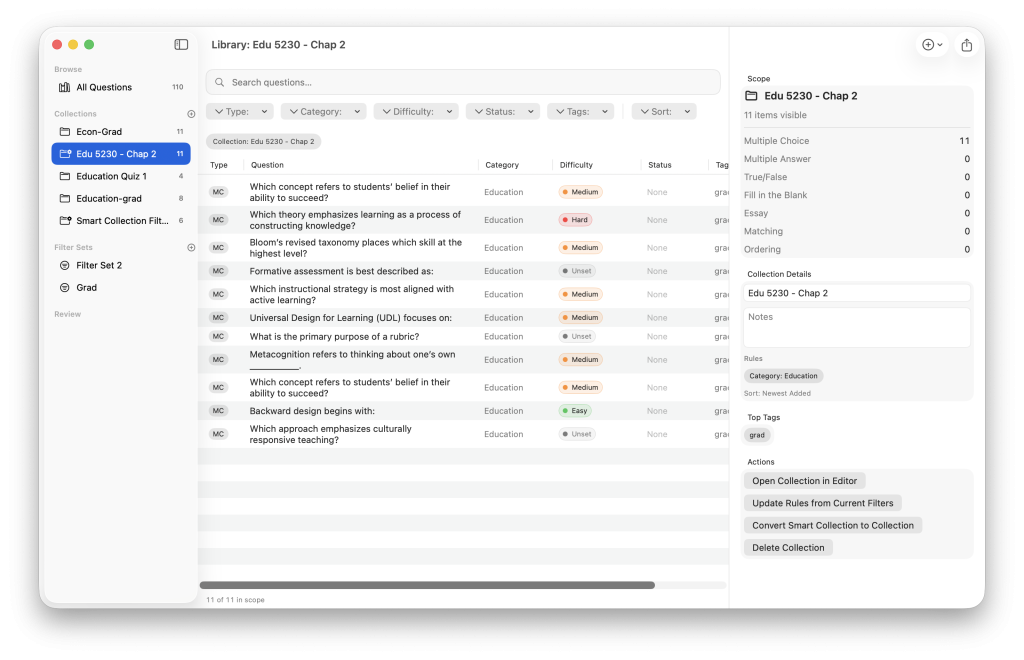
Adding questions to the library
- Add all questions from the current document using Add to Library in the sidebar
- Add a single question using Add to Library from the question’s context menu
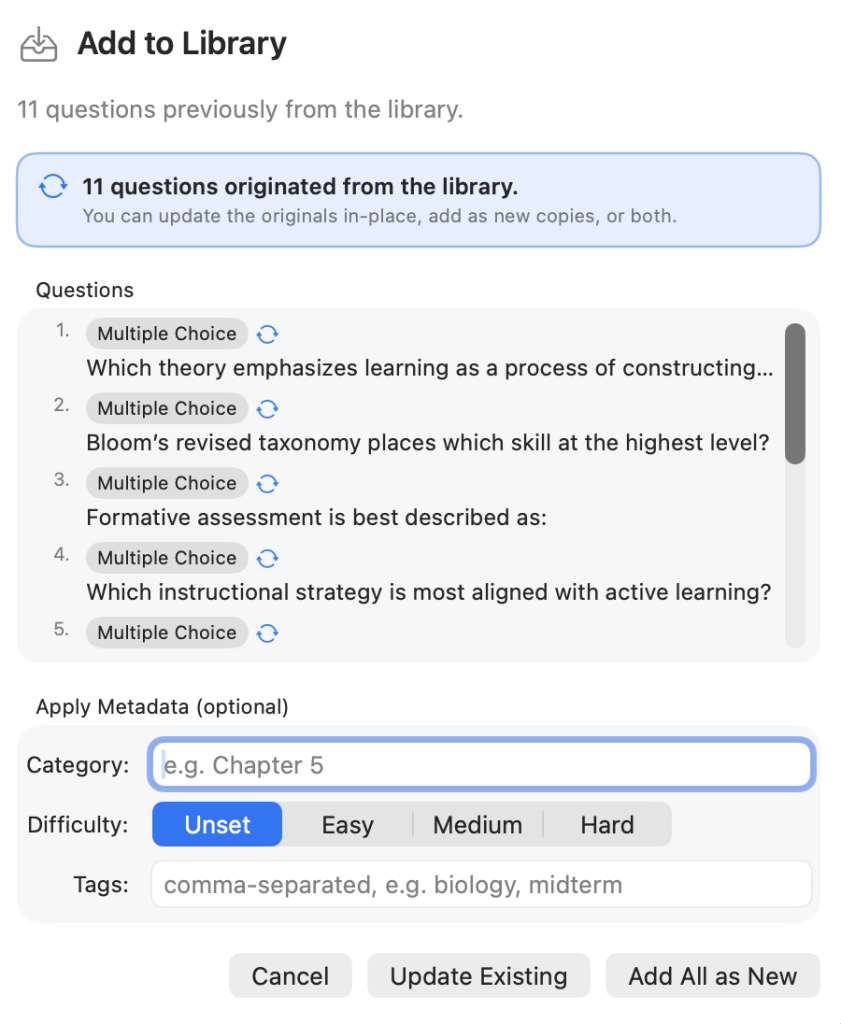
When adding, an options sheet lets you apply bulk metadata, such as category, difficulty, and tags, before the items are saved. Set these consistently and your library filters stay useful as it grows.
Search and filter
The library sidebar filters by question type, category, difficulty, and tags. The search field matches against question text, answer text, categories, and tags simultaneously. Use Clear Filters to return to the full collection.
Sending questions into a document
Select one or more library items, then:
- Add Selection to Active Document — appends them to your currently open document
- Open in Editor — opens the selected items in a new document window for focused revision before you decide where they go
Roundtrip editing
Questions sent from the library into a document keep an origin link back to their library source. Edit them in the document as needed. When you are done, use Add to Library again to save the changes back:
- Update Existing — replaces the original library item in place
- Add All as New — saves the edited version as a separate new item, preserving the original as a variant
This makes it possible to revise, refine, and branch library questions without losing track of where they came from.
Export from the library
You don’t need a working document to export. Use the Export menu in the library toolbar to export:
- The current selection
- The current filtered scope
- A specific collection
All standard formats are available including Blackboard text, Blackboard ZIP packages, QTI, Yuja Engage, and JSON.