From your document to your LMS
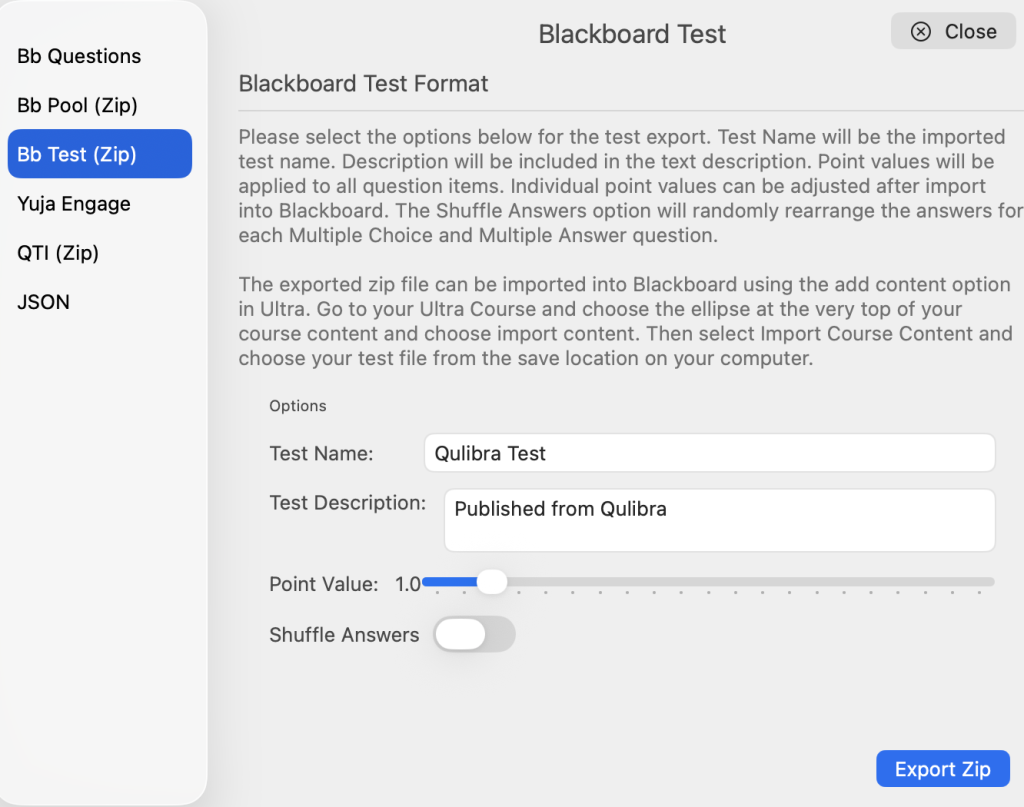
When your questions are clean and reviewed, open the Export window from the sidebar. Choose a format, fill in any format-specific options, and save. The output is now ready to be imported directly into your Learning Management System.
Supported export formats
- Blackboard Question Format — plain text format for Blackboard’s manual import workflow
- Blackboard Pool ZIP — packaged pool import for Blackboard Learn
- Blackboard Test ZIP — packaged test import for Blackboard Learn
- QTI 2.1 Package — the standard XML-based interchange format for cross-platform LMS delivery
- Yuja Engage — direct export for Yuja’s interactive platform
- JSON — structured data output for custom workflows and integrations
PDF for review and sign-off
Use the PDF action in the sidebar to generate a printable review copy of the current document. PDF output is separate from the main export workflow and use it for proofreading, instructor review, or archiving before you submit the final package to your LMS.
Format-specific handling
Qulibra handles the edge cases that trip up manual exports.
Blackboard Ultra and Ordering questions: Blackboard Ultra does not support Ordering items natively. When you export for Blackboard Ultra, Ordering questions are automatically converted to Matching items with numbered pairs, the intended sequence is preserved, and the items import without errors.
Answer keys and metadata: When a target format supports it, Qulibra includes correct answer assignments and metadata fields in the export package. Nothing is silently dropped.
Before you export
- Review question types in the sidebar, if an unexpected type is detected it is flagged to avoid incorrect export mapping
- Confirm correct answer assignments, especially after import from Word or QTI
- Save your document before generating final deliverables